
Elytra User Manual
⚡️ Power On/Off
To turn the keyboard on or off, use the toggle located on the side of each unit.
- Turn ON: Slide the toggle to the Right.
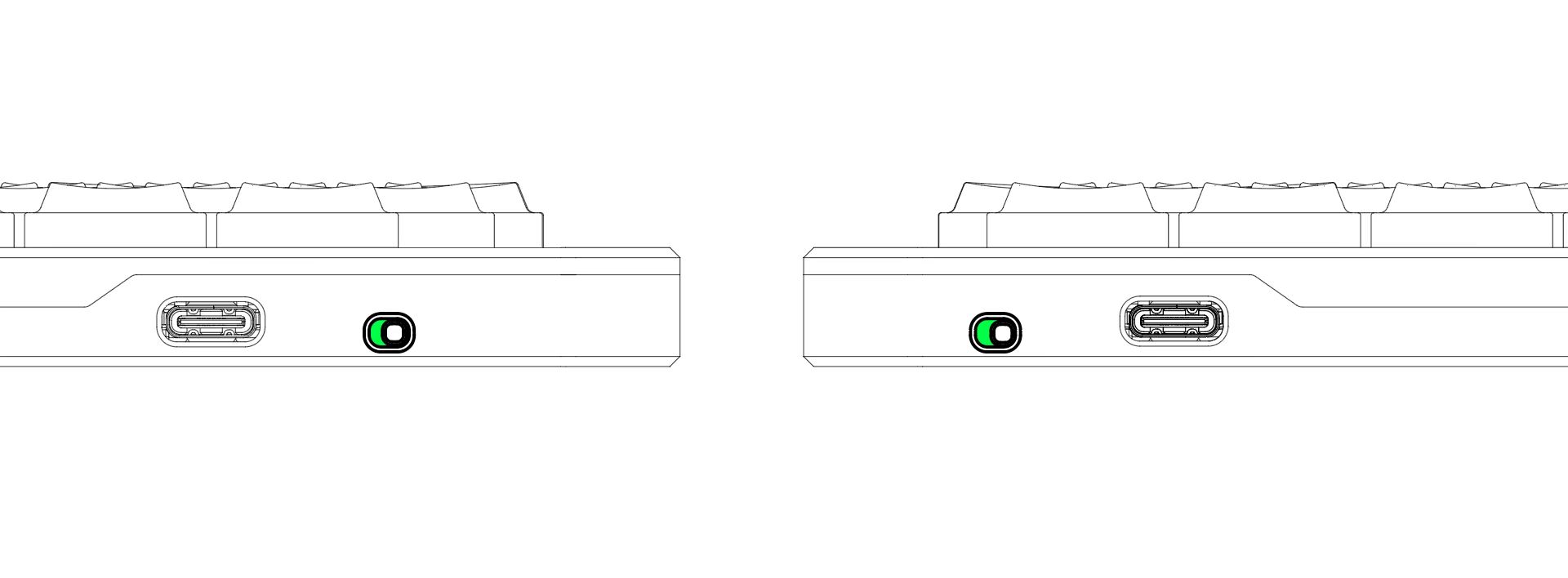
- Turn OFF: Slide the toggle to the Left.
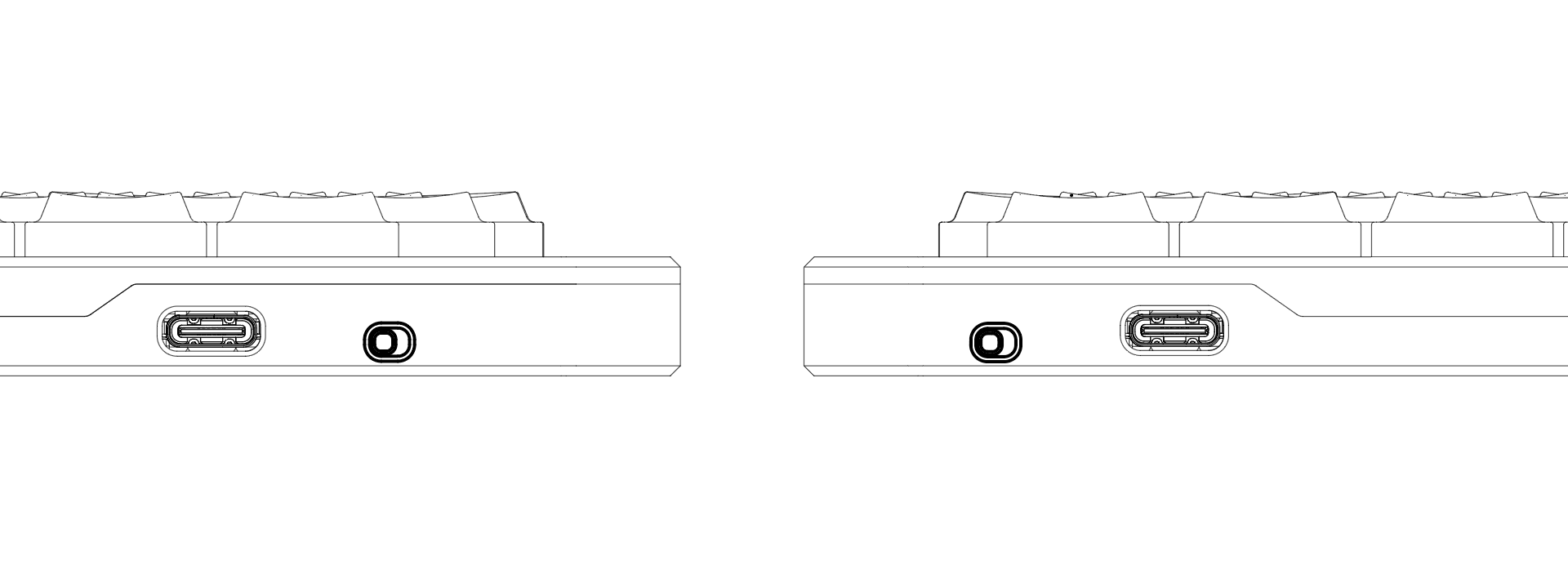
(Note: Directions are based on looking directly at the toggle)
💡 Indicator Lights
Left Hand (Central):
The right light indicates the Bluetooth connection status, the left light indicates the battery level and peripheral connection status
| Light Position | Color | Behavior | Meaning |
|---|---|---|---|
| Right | 🟢 / 🔵 / 🔴 | Breathing | Bluetooth profile 1/2/3 is waiting for pairing |
| Right | 🟢 / 🔵 / 🔴 | Solid -> Off | Bluetooth profile 1/2/3 connects successfully |
| Left | 🔴 | Blinking | Low battery |
| Left | 🟢 | Breathing | Charging |
| Left | 🔵 | Breathing | Searching for Right Hand (Peripheral) |
Right Hand (Peripheral):
The right light indicates the central connection status, the left light indicates the battery level.
| Light Position | Color | Behavior | Meaning |
|---|---|---|---|
| Right | 🔵 | Breathing | Searching for Left Hand (Central) |
| Left | 🔴 | Blinking | Low battery |
| Left | 🟢 | Breathing | Charging |
🛜 Connectivity
USB Connection (Wired Mode)
- Connect the USB data cable to the Left Hand (Central) only.
- The USB port on the Right Hand is for charging only and does not transmit data.
Bluetooth Connection
Elytra supports up to 3 devices.
- Switching Devices: Open Vial, go to the User tab, and assign keys to
BT0,BT1, andBT2. Use these keys to switch between Bluetooth profiles.
Connection Mode Switching
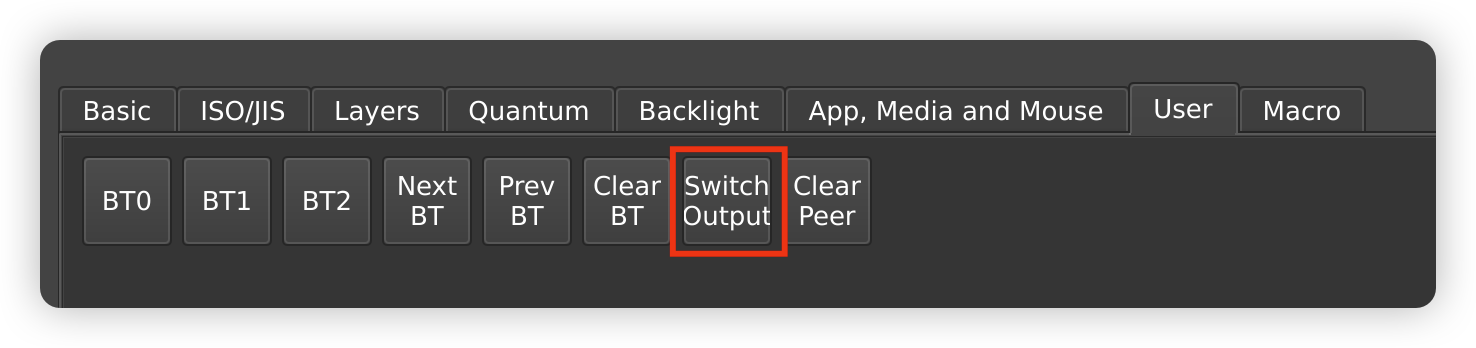
By default, Elytra is set to USB Priority mode. You can toggle modes via the Switch Output button in the Vial User tab.
- USB Priority Mode (Default):
- If USB is plugged in: Keyboard communicates via USB.
- If USB is unplugged: Automatically switches to Bluetooth.
- Bluetooth Priority Mode:
- Bluetooth is always the primary connection.
- Even if plugged in via USB, the cable will only charge the battery; keystrokes are sent via Bluetooth.
⌨️ Key Remapping
Elytra supports real-time key remapping via Vial:
- Open vial.rocks in a Chromium-based browser (Chrome, Edge)
- Click "Start Vial" and select "Elytra" from the device list
- Once connected, you can customize your layout instantly
Note: Connection may occasionally fail due to signal interference. If this happens, refresh the page and retry.
💤 Sleep Mode
Elytra enters sleep mode automatically after a period of inactivity.
- When Connected: Bluetooth remains active. Waking up is instant (no keystrokes lost).
- When Broadcasting (Not Connected): The keyboard turns off radio activity. Press any alphanumeric key to wake it up and make it discoverable again.
🔗 Central & Peripheral Pairing
Automatic Pairing (Out of the Box)
- The Left and Right units are pre-paired. They will automatically connect to each other when powered on. No setup is required.
Unpairing (Resetting Connection)
Only perform this if you need to replace a unit or fix a connection issue between halves.
Open Vial and navigate to the User tab.
Assign the Clear Peer function to a key on your layout.
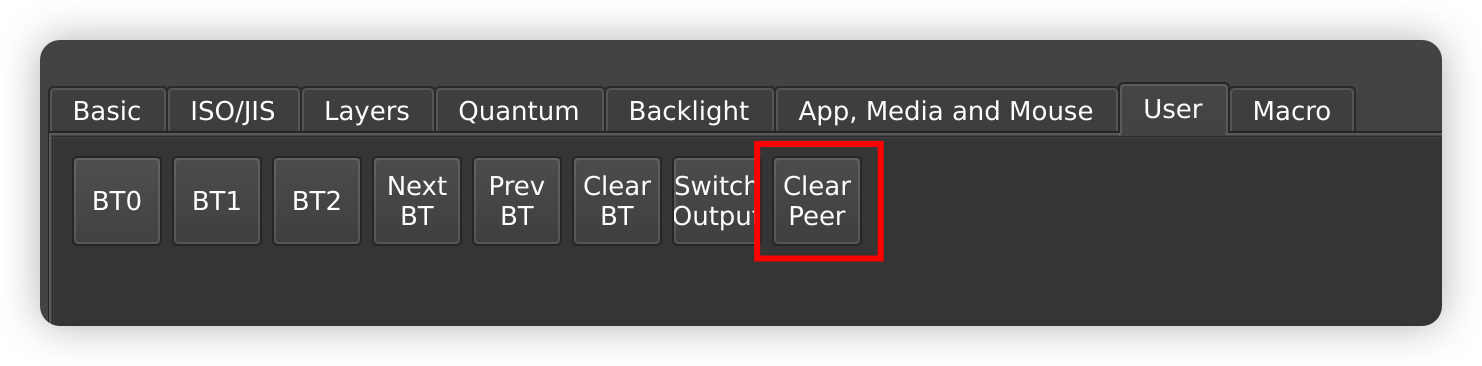
Press and hold the "Clear Peer" key for 8 seconds.
Power Cycle Required:
- Unplug the USB cable.
- Turn off the power switch.
- Wait 3 seconds, then turn it back on.
Re-pairing
After unpairing and restarting, both units will enter "Search Mode" (Blue breathing light). They will automatically find each other and re-pair.
Tip: If pairing multiple sets of keyboards, power on only one pair at a time to prevent cross-connection between different splits.
Firmware Update
Follow these steps to update your keyboard firmware:
- Remove existing pairings: "Forget" or remove the keyboard from the Bluetooth settings of all paired devices.
- Locate the reset button on the bottom of your keyboard. There's one button on each side, positioned along the keyboard's edge.
- Connect a USB cable to the Right Hand (Peripheral), then double-click the reset button. A USB drive named "Elytra" will appear on your computer.
- Drag and drop the peripheral firmware file onto the drive. Make sure you're using the correct firmware for each side—don't mix them up!
- The USB drive will automatically disconnect once the update completes. Note: macOS may show an error message when the keyboard reboots—you can safely ignore this.
- Repeat steps 3-5 for the Left Hand (Central), this time using the central firmware file.
- All done! Your keyboard is now running the latest firmware.